Using VS Code on OOD

Open on Demand

Screenshot of the Open OnDemand dashboard at ood.hpc.virginia.edu
  • Interactive jobs on compute nodes
  • Access to your files in your HPC Account
  • Access to available software modules

Open OnDemand (ood.hpc.virginia.edu)


VS Code Server
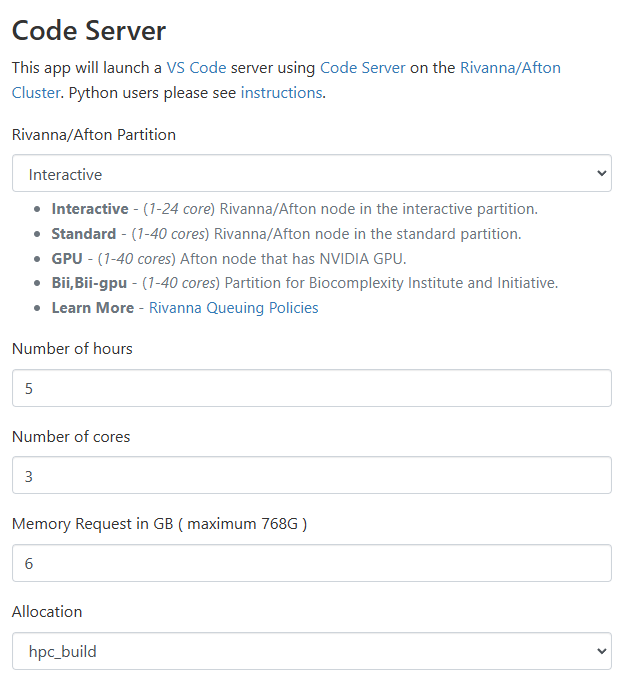
Screenshot of VS Code Server running in the Open OnDemand browser interface
  • Keyboard shortcuts don’t work
  • Navigate just as you would on your local
  • “New Window” opens a new tab
  • Any changes you make on VS Code Server are on the cluster
    • They don’t sync with your local
  • You don’t need to install software on your own computer

Getting Started
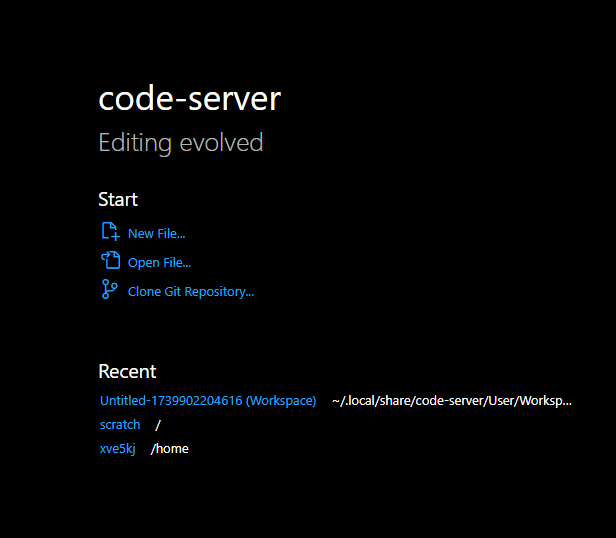
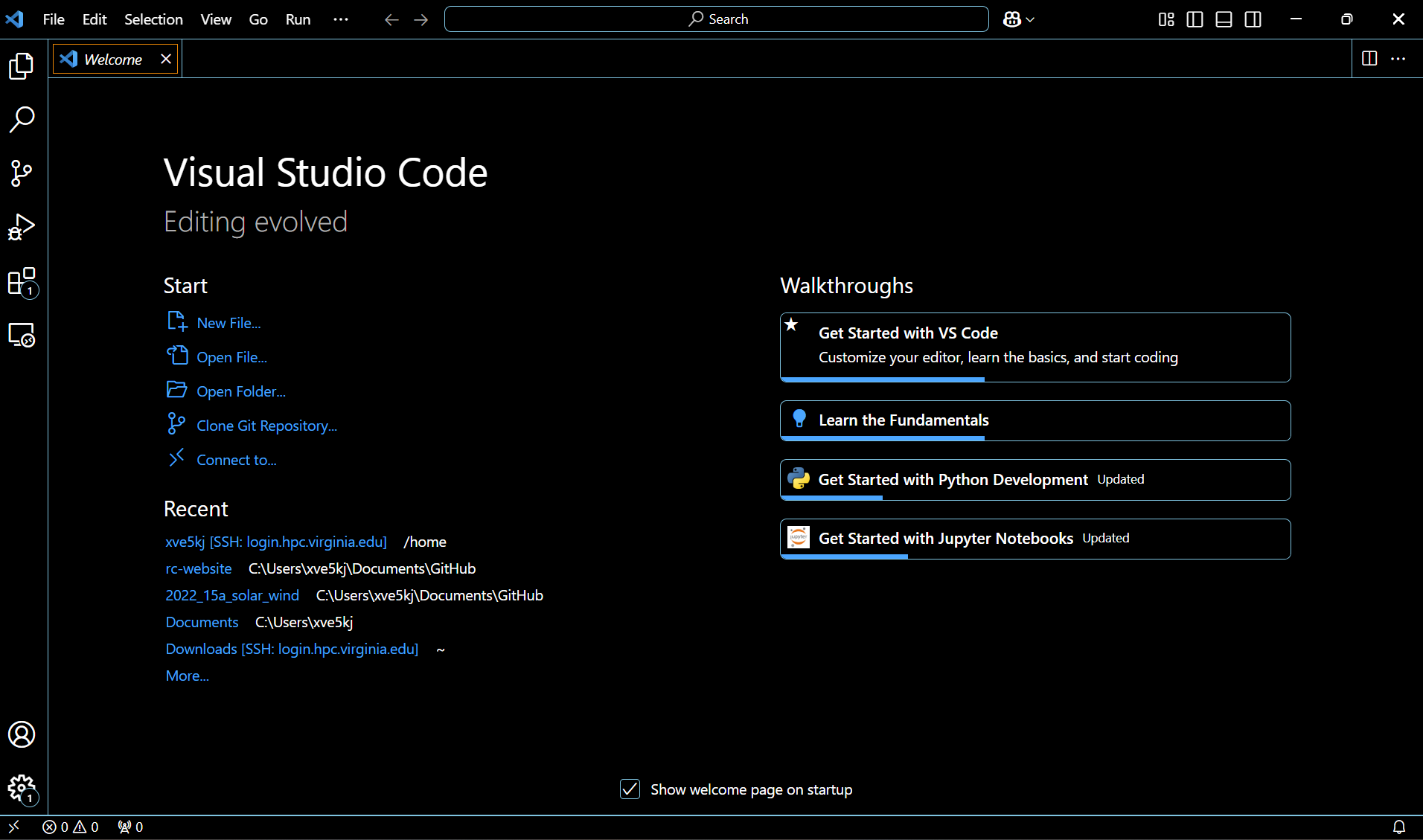
Screenshot of the VS Code welcome page showing options to get started

The welcome page upon launch provides you with a variety of options to get started.


Working with Files and Folders

Open a Folder

Select File > Open Folder…

Appears in the explorer for easy navigation

Screenshot of the VS Code File menu with Open Folder option highlighted
Screenshot of the folder selection dialog in VS Code
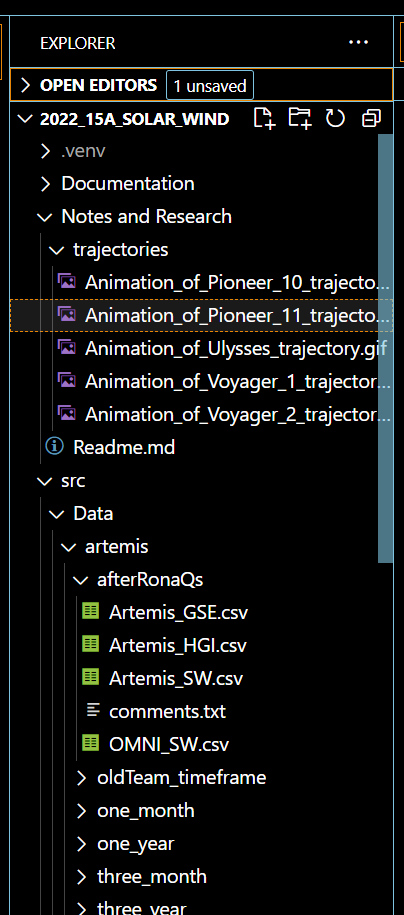
Screenshot of the VS Code explorer panel after a folder has been opened

Add a Folder

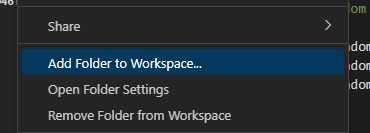
Select File > Add a Folder to Workspace…

Appears in the explorer for easy navigation
Screenshot of the VS Code File menu with Add Folder to Workspace option highlighted
Screenshot of the VS Code explorer panel showing multiple folders in a workspace

Workspaces

Screenshot of the VS Code File menu showing Save and Open Workspace options

Save a Workspace:

Select File > Save Workspace As

Open a Workspace:

Select File > Open Workspace from File…

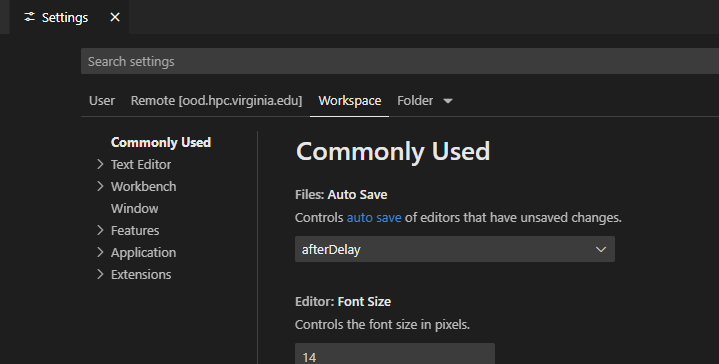
Workspaces are configurations of your files and folders, so it can easily let you access your project configurations. You can even modify specific settings!

Screenshot of the Save Workspace As dialog in VS Code
Screenshot of a VS Code workspace configuration file opened in the editor

Installing Extensions

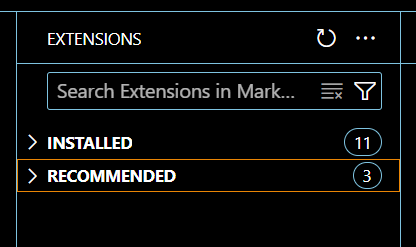
Access the marketplace in your web browser, or open the extensions tab in VS Code (Ctrl+Shift+X).

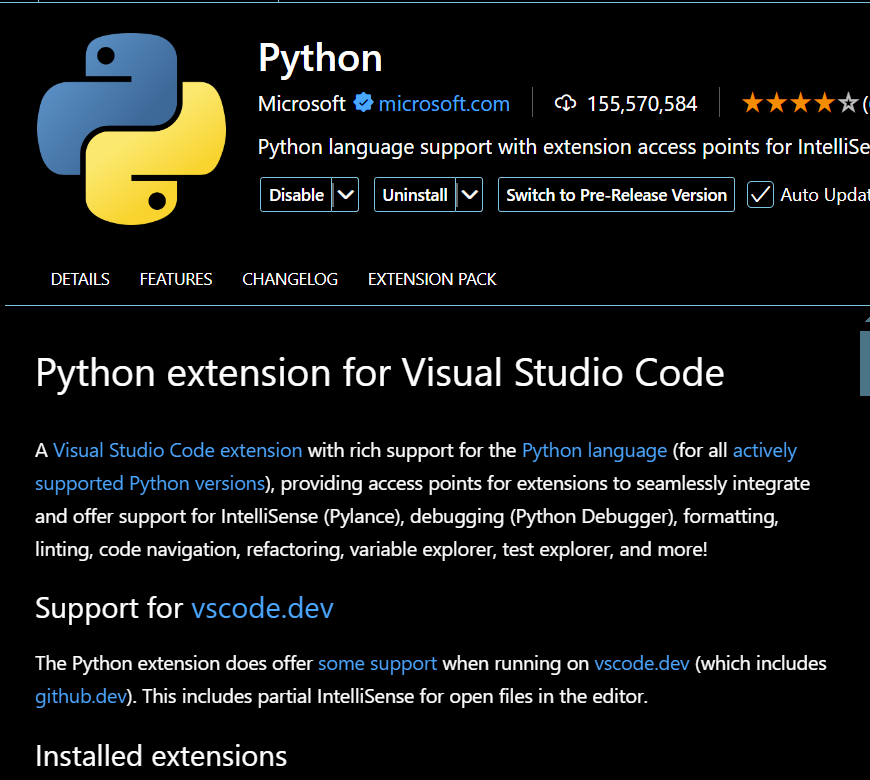
Install Python and Jupyter
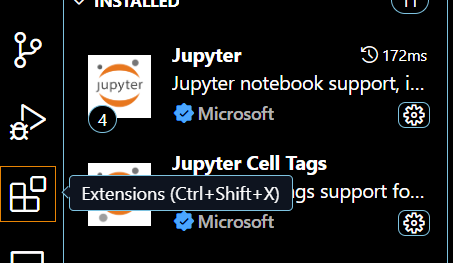
Screenshot of the VS Code extensions marketplace sidebar
Screenshot of the Python extension listing in the VS Code marketplace
Screenshot of the Jupyter extension listing in the VS Code marketplace

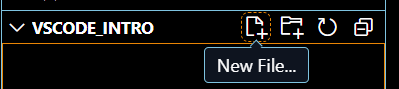
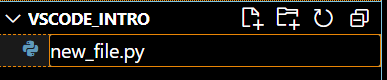
Creating a New File

Select File > New File…

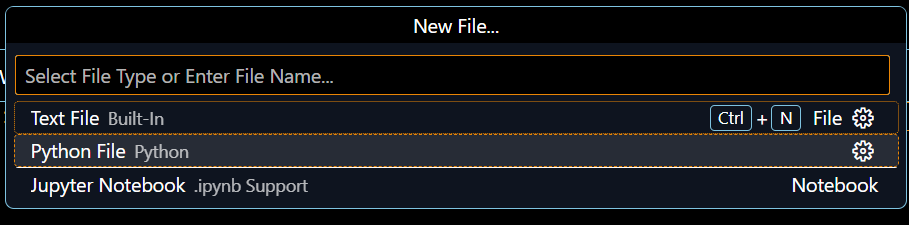
Select your file type

Make sure it is in the right folder, or move it to the correct folder in the file explorer on the left

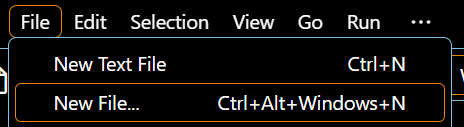
Screenshot of the VS Code File menu with New File option highlighted
Screenshot of the VS Code file type selection prompt
Screenshot of the VS Code new file type selection dialog
Screenshot of a newly created file visible in the VS Code explorer panel
Screenshot of a new empty file open in the VS Code editor
Previous
Next
RC Logo RC Logo © 2026 The Rector and Visitors of the University of Virginia