Running and Debugging
Debugging
VS Code lets you debug without modifying your code.
Add breakpoints and view variables be updated as the code runs.
| Action | Shortcut | Explanation |
|---|---|---|
| Continue / Pause | F5 |
Continue: Resume normal program/script execution (up to the next breakpoint). Pause: Inspect code executing at the current line and debug line-by-line. |
| Step Over | F10 |
Execute the next method as a single command without inspecting or following its component steps. |
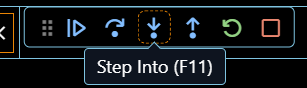
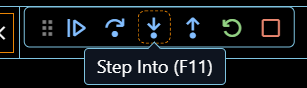
| Step Into | F11 |
Enter the next method to follow its execution line-by-line. |
| Step Out | Shift+F11 |
When inside a method or subroutine, return to the earlier execution context by completing remaining lines of the current method as though it were a single command. |
| Restart | Ctrl+Shift+F5 |
Terminate the current program execution and start debugging again using the current run configuration. |
| Stop | Shift+F5 |
Terminate the current program execution. |
Debug a File
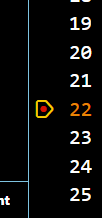
Insert breakpoints by selecting a line to place a “red dot”
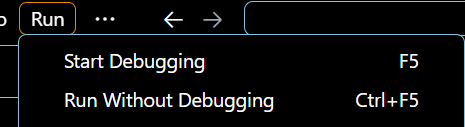
Run > Start Debugging
Opens a terminal automatically
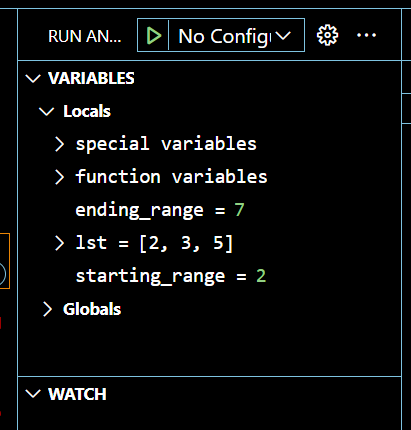
Variables visible on the left side
Walk through the debug tools
Open a Terminal
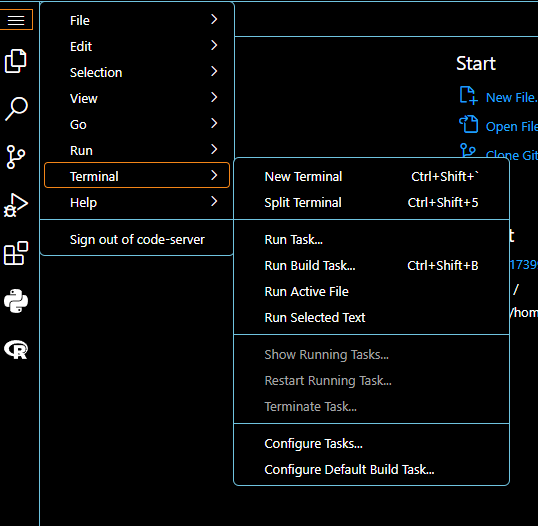
Terminal > New Terminal
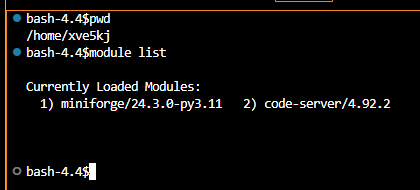
From here you can use regular terminal commands like pwd or even load modules!
Create a Conda Environment
In a new terminal:
conda create -n my_env python=3.11 numpy pandas
conda activate my_env
pip install matplotlib
Set Your Interpreter
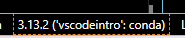
Select your environment from your list!
When you run your code it will run in your environment.


Run a File
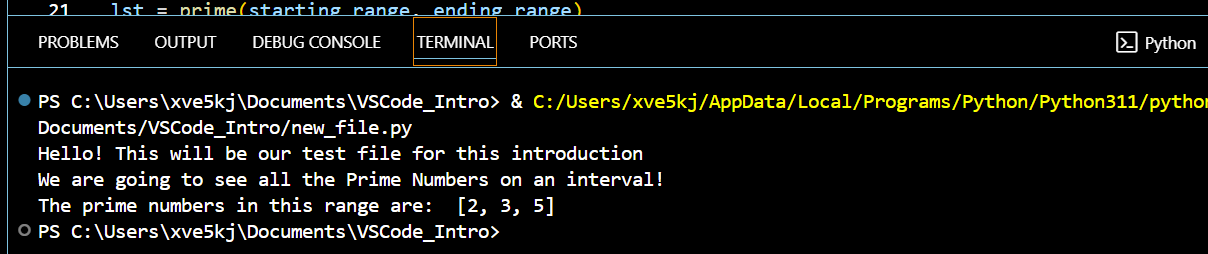
Modify your file with some basic runnable Python code
Run > Run Without Debugging
Opens a terminal automatically


Jupyter Notebooks
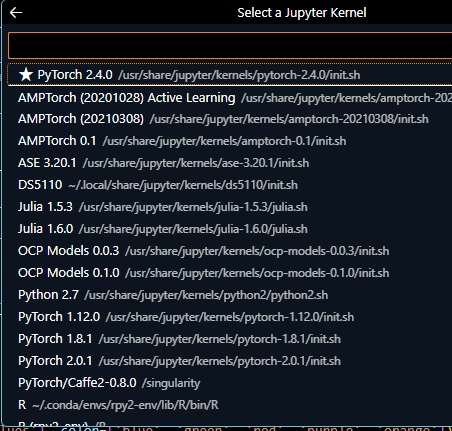
Select kernel from the list of available kernels – or make your own!
Recently used kernels are “starred”
Create your own kernel from a conda environment:
Custom Jupyter Kernels (RC Documentation)
Customization
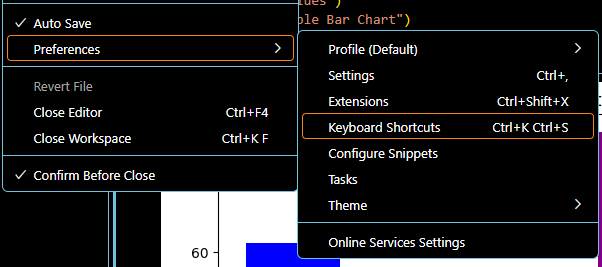
File > Preferences
These changes stay even when you open a new interactive session
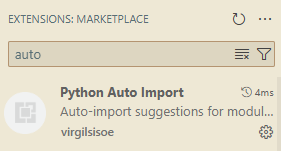
You can even download extra extensions!