Overview
What is VS Code?
Background
- Exists between an Integrated Development Environment (IDE) and a code editor
- IDE:
- Everything needed for software development
- Source-code editor, build automation tools, a debugger all with a GUI
- Code editor:
- Lightweight, fast for writing and running code
- May have simple debugging features
- VS Code:
- Open Source, lightweight, cross-platform, fast
- GUI, debugger
- Extensions for extra functionality

- Developed by Microsoft in 2015
- Similar to Visual Studio which is a true IDE
- VS Code focused on being lighter and more accessible
- Windows, Linux, macOS and web browsers
- Open-source
- Extremely popular
- Rated #1 on a 2024 survey, 73% of 58,000 respondents prefer VS Code
Technology | 2024 Stack Overflow Developer Survey
Useful Features
- SSH to Remote Servers
- Customization
- Built-in terminal
- Many key bind shortcuts
- Fast, light-weight
- Debugging
- Cross-platform
- Code refactoring
- Extensions (R, JupyterLab, Python, C, Visual extensions)
- Version Control Integration with Git
- Bracket matching
Extensions
- Extensions are available in the “marketplace”
- Common extensions are free and often updated
- VS Code Extension Marketplace
- Extensions may require software to already be installed on your computer
- Python, Java, etc.

Useful Shortcuts
| Action | Shortcut | Description |
|---|---|---|
| Run | Ctrl+F5 |
Runs your code. Run > Run Without Debugging |
| Save | Ctrl+S / Ctrl+Shift+S |
VSCode autosaves frequently. File > Save/Save As.. |
| New Window | Ctrl+Shift+N |
Start a new VSCode Window. File > New Window |
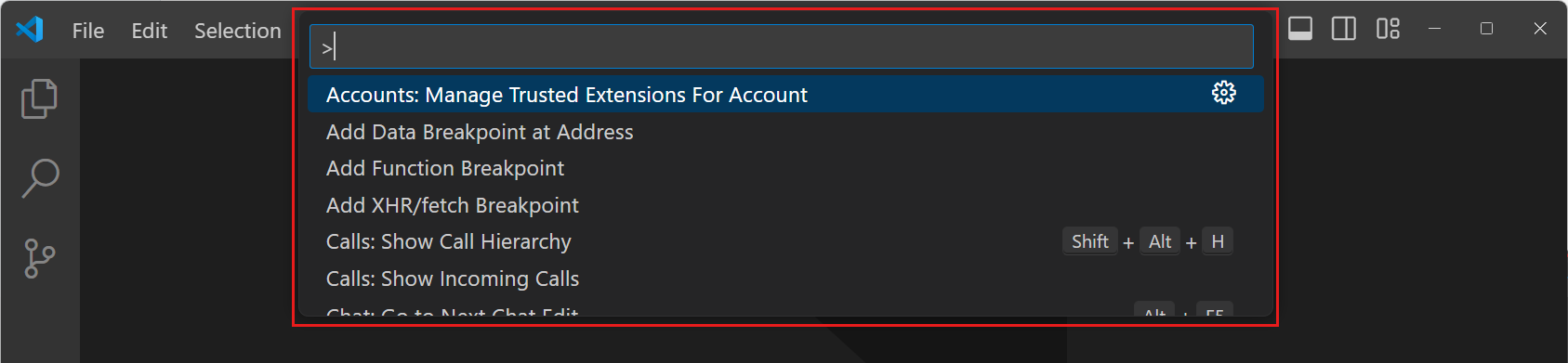
| Command Palette | Ctrl+Shift+P |
VSCode/Extension Commands. View > Command Palette… |