Requesting a Session
To request an interactive session, select one of the applications from the dropdown. This will prompt you to fill in the desired resources for your interactive job.
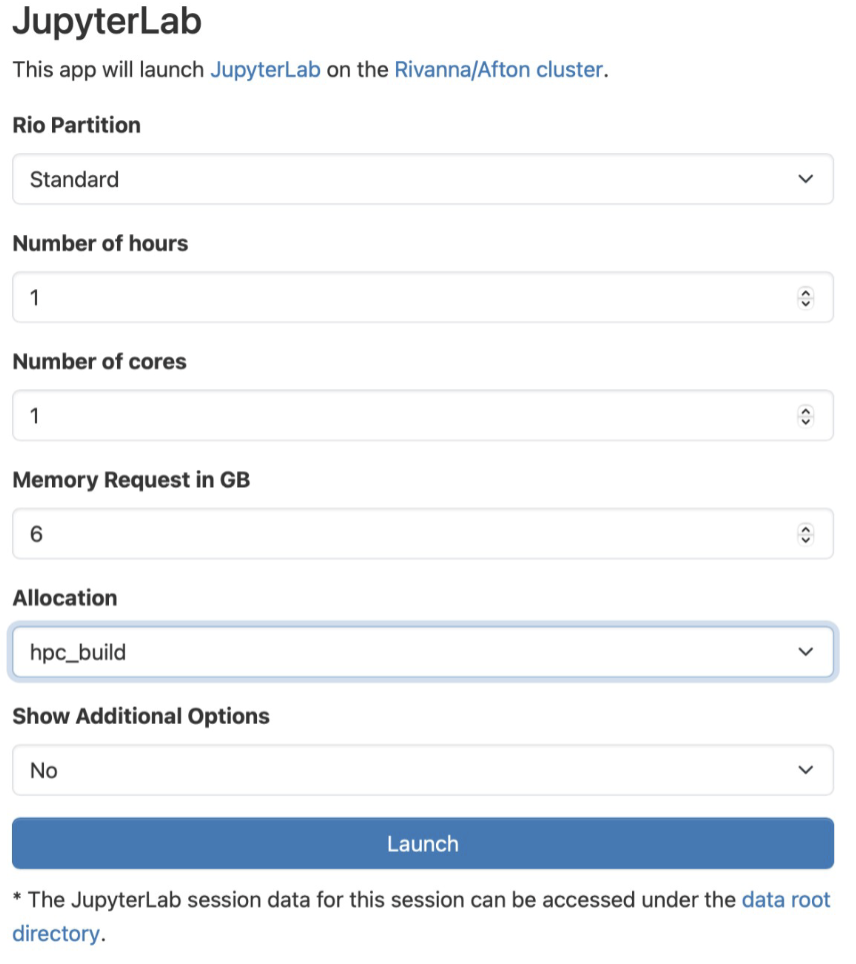
The above example is for starting a JupyterLab session.
Choosing Resource Requests
Partition: Standard or GPU (only select GPU if you are using GPU-enabled code).
Time: Time limit for your session. Once reached, your session will terminate along with any running code. This cannot be adjusted once set.
Cores: Used in parallel processing. Your code must be modified to take advantage of using multiple cores.
Memory: A good rule of thumb is to request 2 to 3 times the size of the data that you are reading in or generating.
Optional Slurm Option: This field is used to input one of the many other Slurm options.
Queueing the Session
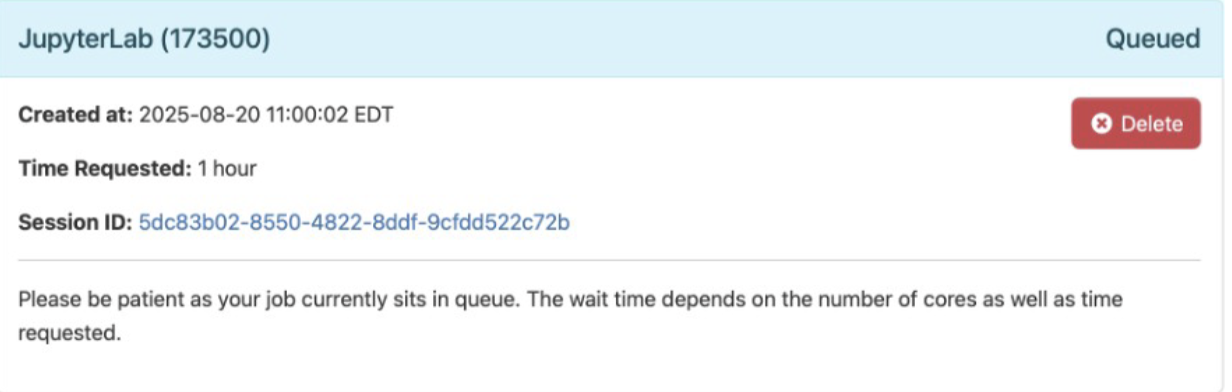
Once you’ve filled out the resource request form, click the Launch button at the bottom to queue your job. While queued, the job will wait for the resources you’ve asked for to become available. Requests with higher resource requests (more cores, more memory, more time) may wait longer.
Launching the Session
When the job has started, the status will change from Queued to Running. A button will appear to open a browser, launching the interactive session.
