Linux Tools For Text Processing
Introduction
This section is intended for anyone who needs to post-process text files to extract run times, results, or information about the hardware used for the calculations. The skills taught here will also be useful when constructing workflows, preparing high-throughput computing workloads, or pre-processing data to get it into the correct format.
The Linux environment provides a wide range of tools for sorting, splitting, and manipulating files, along with tools for extracting content based on location (line number) or value.
While these text manipulation tasks could be done by hand, the process can be time-consuming, tedious, and, worst of all, error prone. This is especially true if they need to be done many times, such as extracting a value from the potentially thousands of file generated during a set of parameter-sweep calculations.
An obvious solution is to automate the process. Sometimes this requires the development of relatively complex parsers that are beyond the ability of non-programmers to write, but often simple Linux utilities are sufficient.
head/tail
The head/tail command outputs the first/last parts of a file. By default, head/tail will output the first/last 10 lines of a file.
$ head file.txt
Line 1
Line 2
Line 3
Line 4
Line 5
Line 6
Line 7
Line 8
Line 9
Line 10

$ tail file.txt
Line 11
Line 12
Line 13
Line 14
Line 15
Line 16
Line 17
Line 18
Line 19
Line 20
You can also specify that all but the last NUM lines be output (head -n NUM), or all lines from NUM onward are output (tail -n +NUM).
$ head -n -15 file.txt
Line 1
Line 2
Line 3
Line 4
Line 5

$ tail -n +16 file.txt
Line 16
Line 17
Line 18
Line 19
Line 20
sort
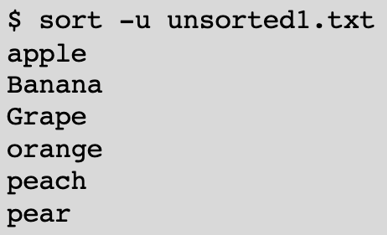
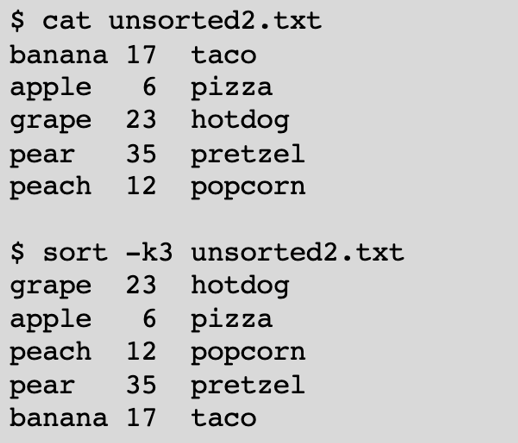
The sort command is used to sort lines of text files. It can be restricted to listing unique values by specifying the -u option:
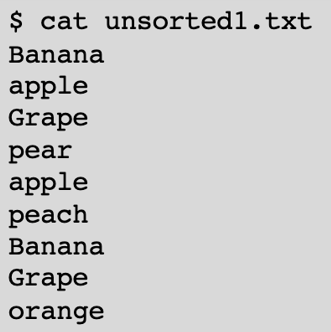
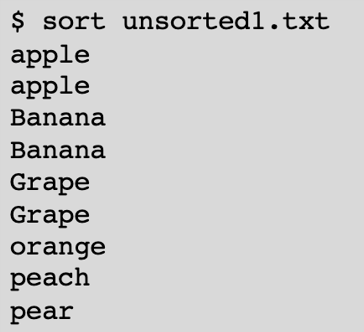
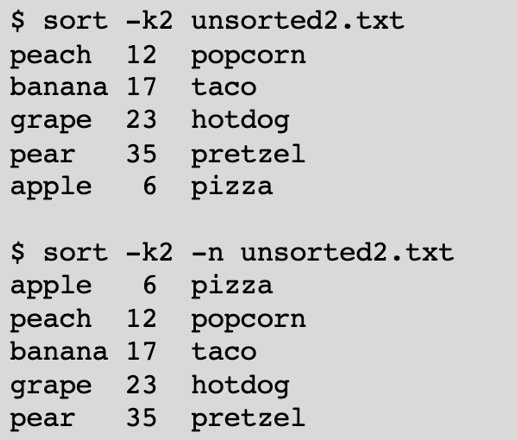
You can also choose the field to be used for sorting using the -k option, with the -n option used to sort by numeric value. In the second example, sorting numerically is probably the desired behavior:
grep
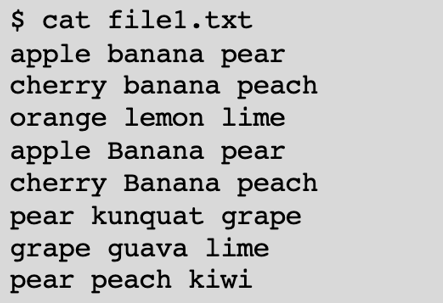
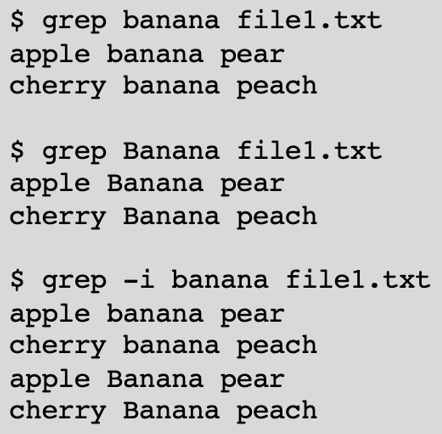
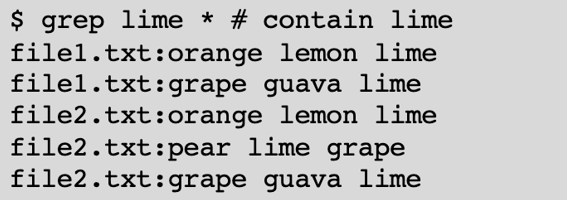
The grep command will print lines that match a pattern. At its simplest, grep returns all lines in a file containing the given search string. Upper and lower case letters are different characters (you’ll need the -i flag if you want your matches to be case insensitive).
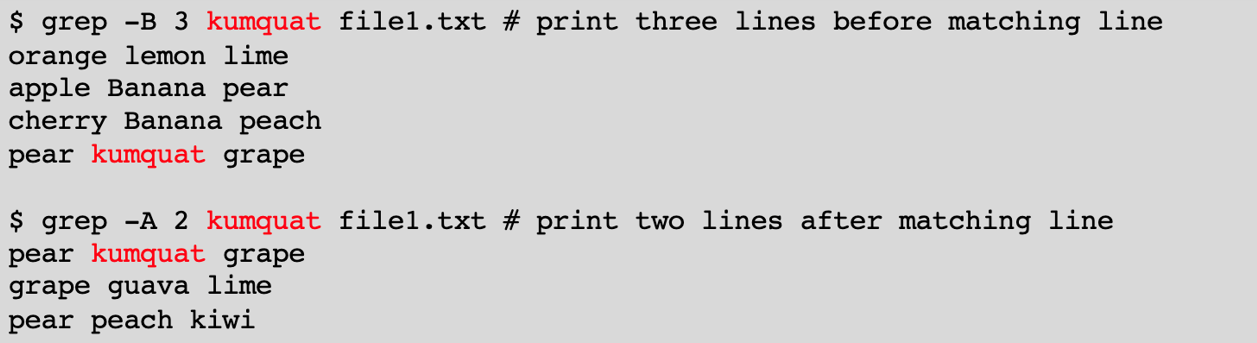
The grep command also provides options for listing lines that occur before or after the matching line. This is extremely useful when the desired content can vary, but occurs in a known location relative to the matching pattern.
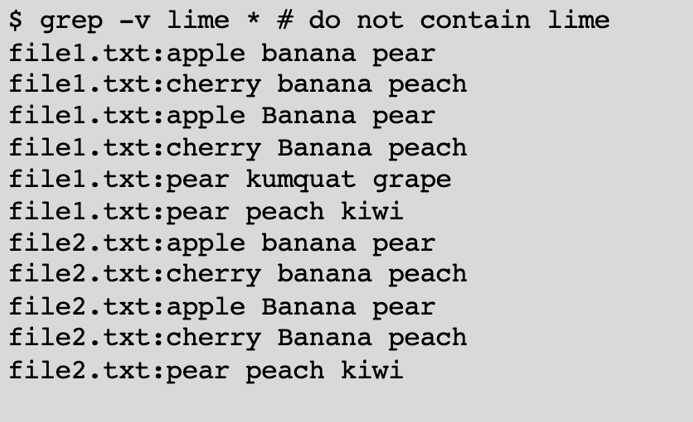
The grep command can also do an inverted match and print lines that do not match the pattern:
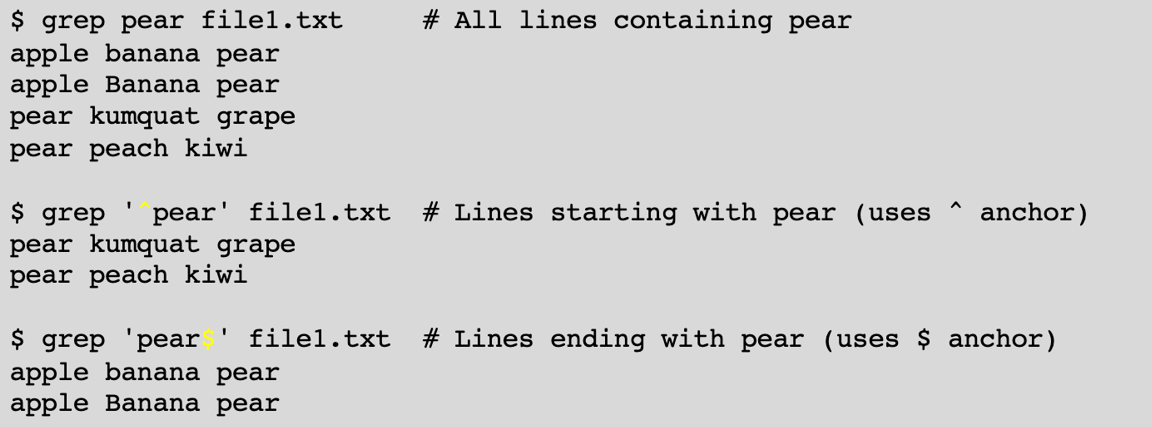
Up to this point, our pattern has been a string literal (e.g., lime or banana). However, grep can recognize more complex patterns that use character classes, anchors, and even regular expressions.
sed
The sed command works as a stream editor for filtering and transforming text. It can be used to apply a substitution to each line of a file. While some of these operations can easily be done using a global replace in a traditional editor (vi, emacs), sed has the advantage that it can be scripted. In addition, since it works on a stream of data, the entire file does not need to fit into memory.

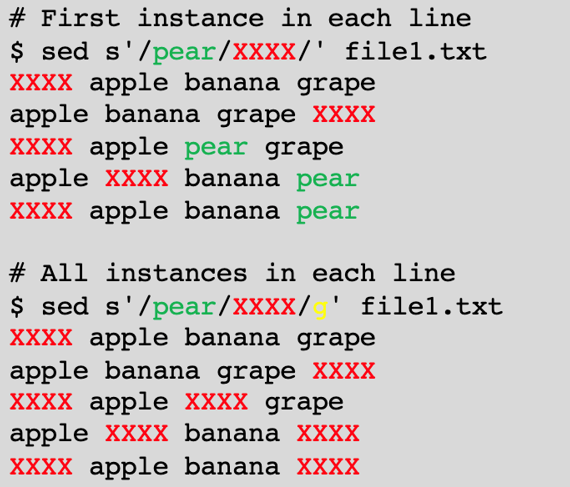
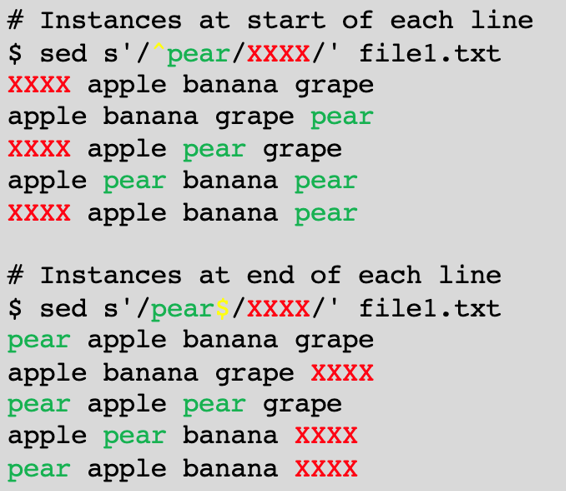
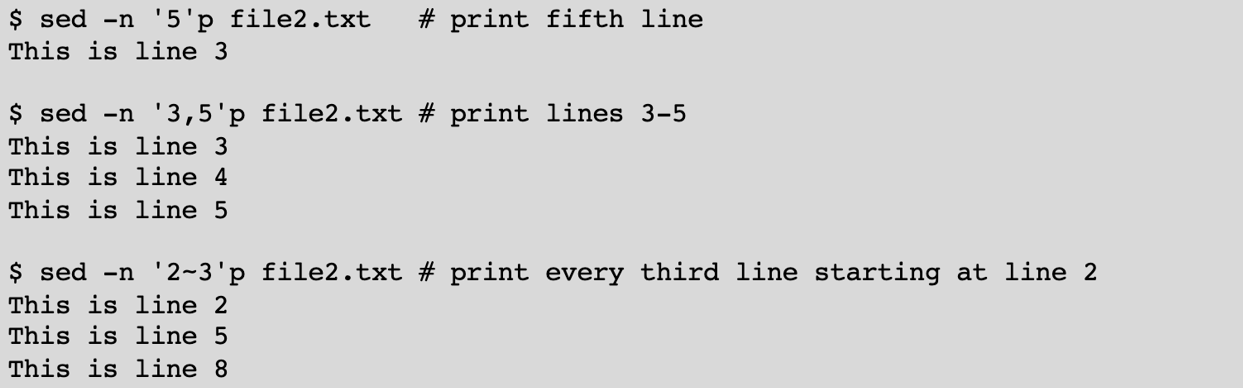
The sed command can also print out specific lines. There are a lot of options, but we’ll just focus on a few things that aren’t easy to do using other tools:
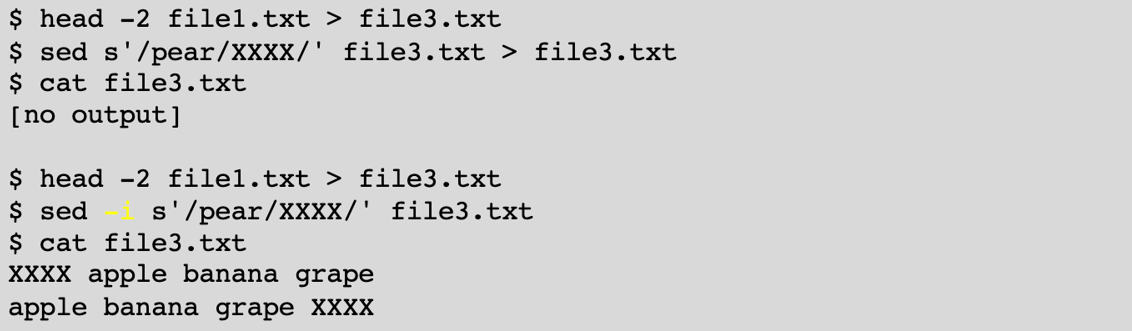
Like all other commands that write to stdout, sed output can be directed to a file. There’s just one gotcha - since sed streams through the file rather than storing in memory, redirecting to the original file doesn’t work. You can write to a temp file, or use the -i option to edit in place.