Linux Commands and Environment
Standard Streams
Each executable has associated with it, three I/O streams: standard input, standard error, and standard output. Normally these streams come from or go to your console (i.e. your shell).
Most Unix commands read from standard input and/or write to standard output. They are often represented as stdin, stderr, and stdout (these are the data streams that bash creates).
Stream Redirection
Redirect standard input with <
mycode < params.txt
Redirect standard output with >
ls -l > filelist
Append with >>
cat file1 >> bigfile
Redirection of standard error depends on the shell. For bash, redirect standard output and error with >&
make >& make.out
Pipes
One of the most powerful properties of Unix is that you can pipe the standard output of one command into the standard input of another.
The pipe symbol | is above the backslash on most US keyboards.
Example:
grep "@H-148:116" SP_R1.fastq | head
grep searches for the pattern in the file, and head looks at the first 10 lines of the grep output.
Wildcards and Globbing
Wildcards let you express a pattern for matching multiple file names using any combination of the following:
?matches any single character*matches any string (including empty string)[...]matches multiple characters or ranges of characters
Globbing is the operation that expands the pattern into a list of files. Globbing is done automatically by many Linux utilities that operate on files such as ls, rm, mv, cat, head, tail, and file.
$ ls
abcde.txt   cdefg.txt   efghi.txt   file2.dat   fileb.dat   ghijk.txt
axcde.exe   cxefg.exe   exghi.exe   file3.dat   filec.dat   gxijk.exe
bcef.txt    degh.txt    fghi.txt    file4.dat   filed.dat   hikl.txt
bxdef.exe   dxfgh.exe   file1.dat   filea.dat   fxhij.exe   hxjkl.exe
Examples using *:
$ ls file*   # file names beginning with 'file'
file1.dat   file3.dat   filea.dat   filec.dat
file2.dat   file4.dat   fileb.dat   filed.dat

$ ls f*      # file names beginning with 'f'
fgij.txt    file2.dat   file4.dat   fileb.dat   filed.dat
file1.dat   file3.dat   filea.dat   filec.dat   fxhij.exe

$ ls *ghi*   # file names containing 'ghi'
efghi.txt   exghi.exe   ghijk.txt
Examples using ?:
$ ls file?.dat   # 'file' + any character + '.dat'
file1.dat   file3.dat   filea.dat   filec.dat
file2.dat   file4.dat   fileb.dat   filed.dat

$ ls a?cde.*.    # 'a' + any character + '.cde' + any string
abcde.txt   axcde.exe

$ ls ?????.?x?   # any 5 characters + '.' + any character +'x' + any character
abcde.txt   bxdef.exe   cxefg.exe   efghi.txt   fxhij.exe   gxijk.exe
axcde.exe   cdefg.txt   dxfgh.exe   exghi.exe   ghijk.txt   hxjkl.exe
Examples using [...]:
$ ls file[13].dat    # multiple matches using list of integers
file1.dat   file3.dat

$ ls file[1-3].dat   # multiple matches using range of integers
file1.dat   file2.dat   file3.dat

$ ls [ac]x*.*        # multiple matches using list of letters
axcde.exe   cxefg.exe

$ ls [a-c]x*         # multiple matches using range of letters
axcde.exe   bxedf.exe   cxefg.exe
Aliases
Aliases are just shortcuts for Linux commands. They’re useful for keeping you out of trouble (e.g., accidentally deleting all files) and abbreviating complex commands.
Example 1 - using an alias to ensure rm * won’t delete everything:
$ alias rm='rm -i' # create an alias called rm
$ which rm # return what the alias rm stands for, and the path to the rm executable
alias rm='rm -i'
        /usr/bin/rm
(Whenever you use rm in the future, the system will automatically replace it with rm -i.)
Example 2 - using an alias to abbreviate a long command (a customized listing of Slurm partitions):
$ alias partitions='sinfo -o "%15P %6a %6D %11s %15F %7c %8m %101 %10L %10G"'
$ which partitions
alias partitions='sinfo -o "%15P %6a %6D %11s %15F %7c %8m %101 %10L %10G"'
        /cm/shared/apps/slurm/current/bin/sinfo
Command History
You can inspect your command history using history. You can navigate this history with the arrow keys so you can execute or modify a previous command (so you do not have to remember and/or type everything again). You can also search for previous commands using emacs key bindings (ctrl+R for reverse search) or switch your bash shell to vi key bindings.
There are special commands to execute previous commands.
history - inspect command history:
$ history
-- snip --
427 cd $HOME/test
428 ls file*.txt
429 rm file777.txt
430 echo "Hello"
!! - execute last command:
$ !!
echo "Hello"
Hello
!(...) - execute last command that started with (…):
$ !ls
ls file*.txt
file1.txt file2.txt file776.txt
!history_number - execute specific command from your history using a history number:
$ !428
ls file*.txt
file1.txt file2.txt file776.txt
More Bash Shortcuts
| Shortcut | Action |
|---|---|
string+Tab |
Autocomplete rest of string while typing |
| ctrl+R | Search for earlier command |
| ctrl+A | Move to the beginning of the line |
| ctrl+E | Move to the end of the line |
clear or ctrl+L |
Clear the screen |
Shell and Environment Variables
Shell and environment variables allow you to customize your environment and control how applications behave on a Linux system.
Shell variables are only known within the current shell.
Environment variables are known globally and are inherited by processes and shells that are launched by the current shell.
More often than not, you probably want to use environment rather than shell variables. Shell variables are set using the KEY=value[:value2:[:value3]...] syntax; space is not allowed around the equal sign, and by convention the KEY is capitalized. Shell variables are made into environment variables using the export command. The value of shell/environment variables is accessed using $KEY.
Example - setting shell and environment variables:
$ KEY1="abcd"          # set shell variable KEY1
$ KEY2="efgh"          # set shell variable KEY2
$ export KEY2          # make KEY2 an environment variable
$ export KEY3="ijkl"   # set environment variable KEY3
$ echo $KEY1           # display KEY1
abcd
$ echo $KEY2           # display KEY2
efgh
$ echo $KEY3           # display KEY3
ijkl

$ /bin/bash            # launch a new shell
$ echo $KEY1           # display KEY1
                       # KEY1 was only known in the parent shell
$ echo $KEY2           # display KEY2
efgh                   # KEY2 was inherited
$ echo $KEY3           # display KEY3
ijkl                   # KEY3 was inherited
All environment variables can be displayed using the env command.
env
Running Executables
Executables are often called binaries, especially by Unix types and computer programmers. The terms are synonymous in most cases.
If the executable is in your search path, you can simply type its name at the prompt.
gedit hello_world.slurm
Here, gedit is the name of the binary. Its actual location is /usr/bin/gedit, but /usr/bin is in the default search path.
If it is not in your search path, you must type the path to the executable (can be absolute or relative).
./ hello_world.slurm
Usually, current working directory (.) is not in your default search path for security reasons. To add it, type (for bash):
__export PATH=$PATH:.__
In this case, it is essential to add the first $PATH or you will lose the default path set by the system.
The Modules Environment
The modules environment is not strictly a part of Unix, though it is widely used by many HPC sites, including ours. The modules environment enables the user to set complex paths, environment variables, and so forth, by loading a module (running a script). The environment is set up automatically when you log in. Loaded modules only affect the shell in which the command is run. Modules required for a job must be loaded in the batch job script.
Modules Commands
| Command | Action |
|---|---|
module spider |
List all available packages (may be a lot!) |
module spider <\package\> |
List all versions of <\package>, if any |
module spider \<package\>/\<version\> |
Describes how to load <package>/<version>. There may be prerequisite modules |
module list |
List modules loaded in current shell |
module load \<package\>/[\<version\>] |
Load the module for (optionally) <version> of <package> |
module unload \<package\> |
Delete the changes made by the <package> module |
module purge |
Remove all module modifications to the environment |
module swap \<package\>/\<current\> \<package\>/\<newver\> |
Exchange one version of a package for another |
Dotfiles - Configuration Files
“Dotfiles” are files that describe resources to programs that look for them. They begin with a period or “dot” (hence the name). Dotifles are hidden from ls, but ls -a shows them. (Sometimes ls is aliased to ls -a.)
Bash has two dotfiles: .bash_profile and .bashrc. If no .bash_profile is present, it will read .profile. The dotfile .bash_profile is sourced only for login shell.
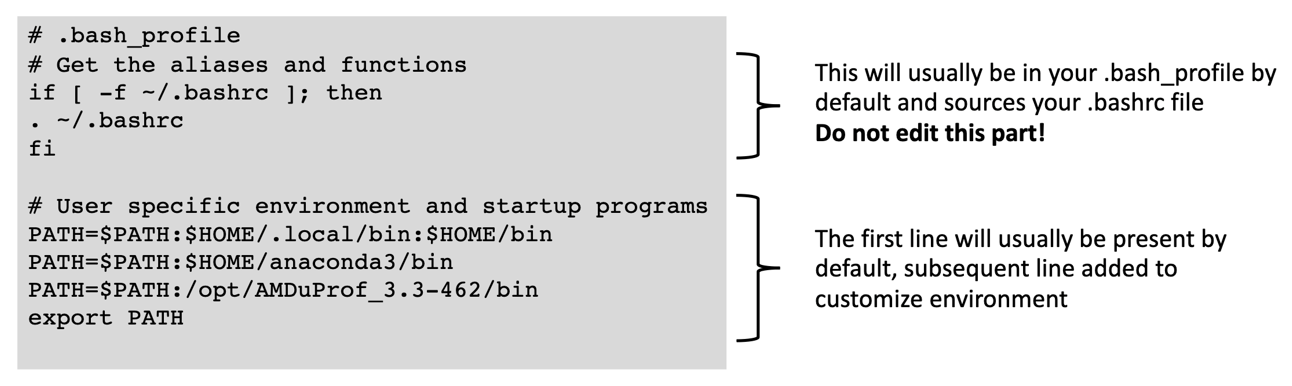
Use ~/.bash_profile for commands that should be run only once, such as customizing environment variables (e.g., $PATH)
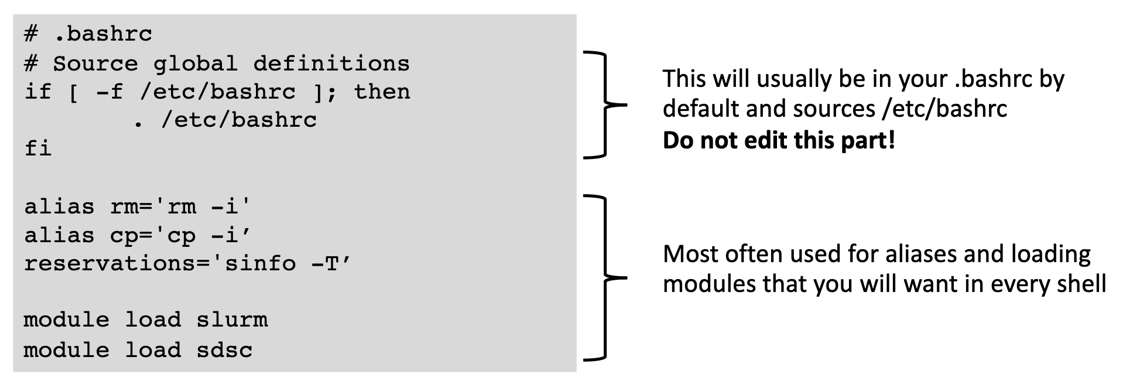
Use ~/.bashrc for commands that should run for every new shell