Command Line Interface to Rivanna
Prerequisites
We assume you already know the Linux basics, such as
- Listing files (
ls) - Removing files (
rm) - Navigating directories (
cd) - Listing file contents (
catand optionallyhead,tail,less,more) - Ability to use one or more standard editors (
vi,vim,emacs,nano) - Relative and absolute paths
Rivanna
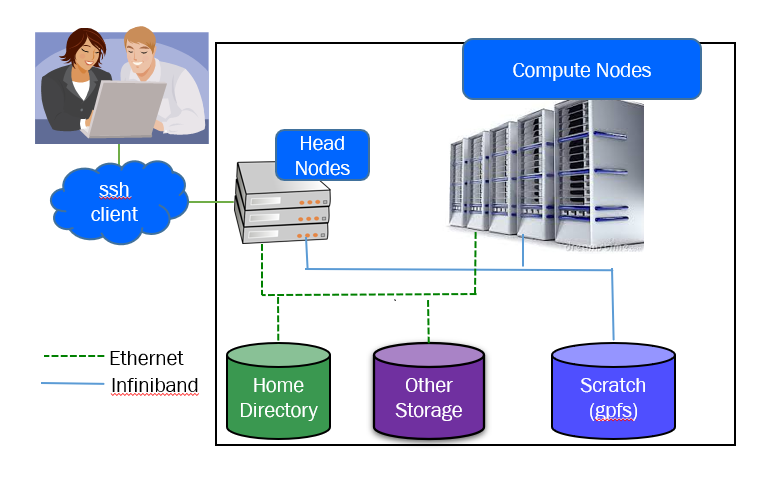
Rivanna is the university’s primary resource for high-performance computation. It provides a platform for computationally-intensive research across disciplines.
Logging In
There are several ways to log in to UVA’s HPC system.
Open OnDemand: https://ood.hpc.virginia.edu/
FastX: https://ood.hpc.virginia.edu/ (OOD > Interactive Apps > FastX Web)
MobaXterm (Windows): https://www.rc.virginia.edu/userinfo/rivanna/logintools/mobaxterm/
Terminal (Mac, Linux):
ssh -Y gka6a@rivanna.hpc.virginia.edu
Transfer Files
To transfer files between computers, you can use commands like scp, rsync, or sftp in your command line interface.
scp
scp l_SOURCE jus2yw@rivanna.hpc.virginia.edu:r_TARGET
scp jus2yw@rivanna.hpc.virginia.edu:r_SOURCE l_TARGET
rsync
rsync -av ldir/ jus2yw@rivanna.hpc.virginia.edu:rdir
rsync my_file jus2yw@Rivanna.hpc.virginia.edu:/scratch/$USER
sftp
sftp jus2yw@Rivanna.hpc.virginia.edu
Sftp> put myfile    # transfer from local to Rivanna
Sftp> get myfile    # transfer from Rivanna to local
Globus Data Transfer

Globus is a simple, reliable, and fast way to access and move your research data between systems. Globus allows you to transfer data to and from systems such as:
- Laptops & personal workstations
- Rivanna HPC cluster
- Ivy Central Storage
- Lab / departmental storage
- Tape archives
- Cloud storage
- Off-campus resources (ACCESS, National Labs)
Globus can help you share research data with colleagues and co-investigators, or to move data back and forth between a lab workstation and Rivanna or your personal computer.
Is your data stored at a different institution? At a supercomputing facility? All you need is your institution’s login credentials.
For more info, visit https://www.rc.virginia.edu/userinfo/globus/
Creating & Editing Files
There are a wide variety of text editors you can use to create and edit files.
geditvi/vim- To enter the insert mode, press i
- To enter the command mode, press Esc
- To save the file, enter
w filename - To exit without saving, press q
nano- To start writing, immediately start typing
- To stop writing, press ctrl+X
- To save the file, type the filename and press Enter
- vscode
- enter
module load code-server/4.16.1 - enter
code-server - Open the browser and copy the given url from terminal (http://127.0.0.1:8080/)
- enter